
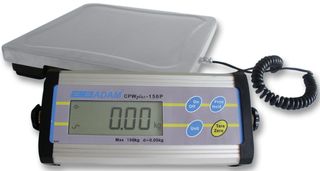
When at the kiosk CPU: Check that the driver for the USB device in Device Manager shows "USB-Serial Controller". If you do not see this device, that means two possible things:
1. Either the USB cords connecting the weight scale to the CPU have been disconnected. (To resolve this issue, make sure the cords are plugged in correctly to both the scale and the CPU, and the weight scale is turned on.)
2. The Scale's driver has somehow been removed, and you will need to reinstall it. (You can reinstall the driver by following the kiosk scale setup steps below.)
Kiosk Scale Setup Steps
These steps apply to Adam AE CW Plus 15 and Adam AE CW Plus 35 models.
- Go to https://zadig.akeo.ie/ and download "Zadig 2.9". If this site is blocked or you are unable to download, please contact our support team to assist you.
- Open the Zadig 2.9 file in your Downloads. A window will open. Select "Yes" to "Make Changes".
- Under the options dropdown, select "List all devices". Select USB Serial Controller D.
- Select "Replace Driver" or "Install Driver". The driver should then install. Once installation is complete, you can move on to the next step.
- Connect the power to the scale.
- Press the unit button on the scale display until “lb” is displayed in the top right corner of the display. Once “lb” shows in the top right corner turn the scale off by pressing the On/Off button.
- With the scale OFF, connect the scale data cables to the serial port on the scale and then plug the USB adaptor into the computer.
- Depress the Zero button and while holding it down press the On/Off button. You should see “ProFF”
- Press the “Unit” to cycle through the settings. Below are what the settings should be set to.
ProFF
bL 2
oFF kg
on lb
oFF oz
oFF lb/oz
Add 1 *
b9600 *
PAr 1 *
trn 2 *
Hod 1
HEi 1
If you have further questions on this article or to learn more, please contact support at support@settrax.com. We're here to support your success!
Comments
0 comments
Please sign in to leave a comment.