
Print Quality Troubleshooting
- If the printer is experiencing poor print quality, go to the kiosk and check the ink ribbon. If it's nearly empty, replace it. Watch a video on how to replace the ink ribbon here:
(Note: If the ink ribbon is full but the quality is still poor, skip to the Zebra Setup Utility and "Configure Print Quality.")
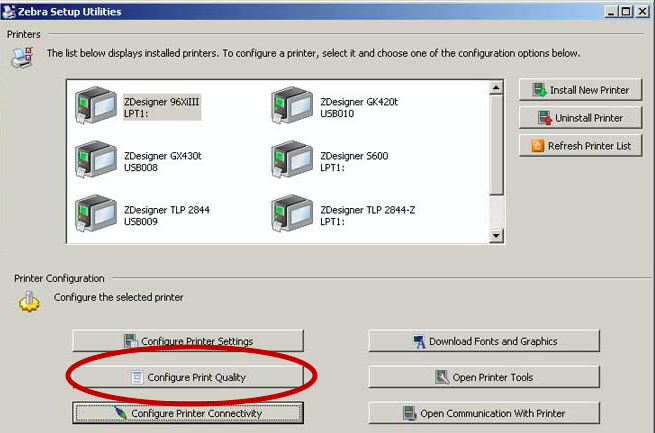
2. After replacing the ink ribbon, open the Zebra Setup Utility and click Configure Print Quality. Follow these steps:
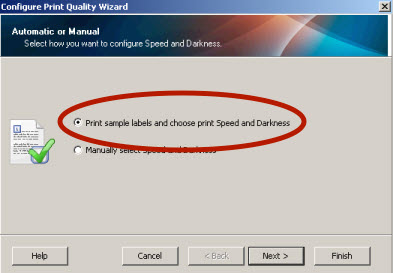
a. Run through the initial setup to optimize print quality.
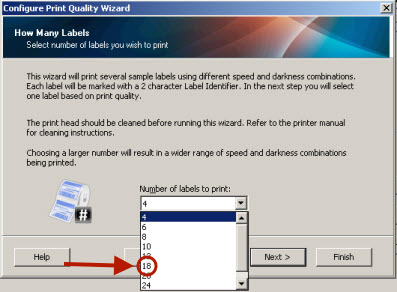
b. Select the option to print 18 labels.
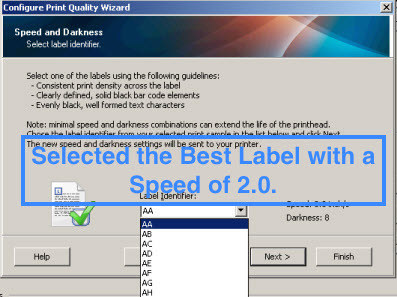
c. Choose the label with the best print quality and a speed of 2.0.
d. Click FINISH to complete the process.
e. From the home screen, click Open Printer Tools.
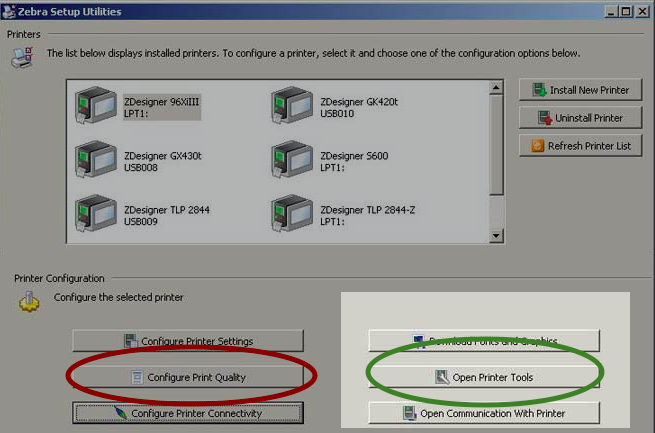
f. Select the Action Tab, click Calibrate Media, and then click the Send button. The printer will now calibrate the label media to ensure proper tracking, feeding several labels in and out.
For questions or more info, contact support@settrax.com. We're here to support your success!
1. If the printer is experiencing poor print quality: please go to the kiosk. First, check the ink ribbon. If it is almost out, replace the ink ribbon in the printer. Watch a video on how to replace the ink ribbon here:
(NOTE: if the ink ribbon is full when you check, but the quality is still poor, then just directly start with the Zebra Setup Utility. You only have to "Configure the Print Quality.")
2. Once you replace the ink ribbon, open the Zebra Setup Utility. Once in the utility, click on "Configure Print Quality." See Below:
a. Run through the same setup you did on the initial install to get the best printing quality on the labels.
b. Select the option to print 18 labels:
c. Once the labels print, please select the option with the best print quality that prints with a speed of 2.0:
d. Click FINISH to complete the process.
e. The next step from the home screen is to click “Open Printer Tools”
f. Select the “Action Tab” and then click “Calibrate Media” and click the “Send” button at the bottom of the screen. The printer will now calibrate the label media to ensure proper tracking. You will notice several labels feed in and out of the label printer.
If the above article doesn't resolve your issue, please contact support at support@settrax.com for further assistance. We're here to support your success!
Comments
0 comments
Please sign in to leave a comment.